


Technical Knowledge
RAW, DNG and Co.
What is the limit and what can I get out of my camera without AI. Technical tricks for lossless photos.
Documentation from times before Topaz and Co., but still valid.
Your Photo Trainer
Johann Dirschl
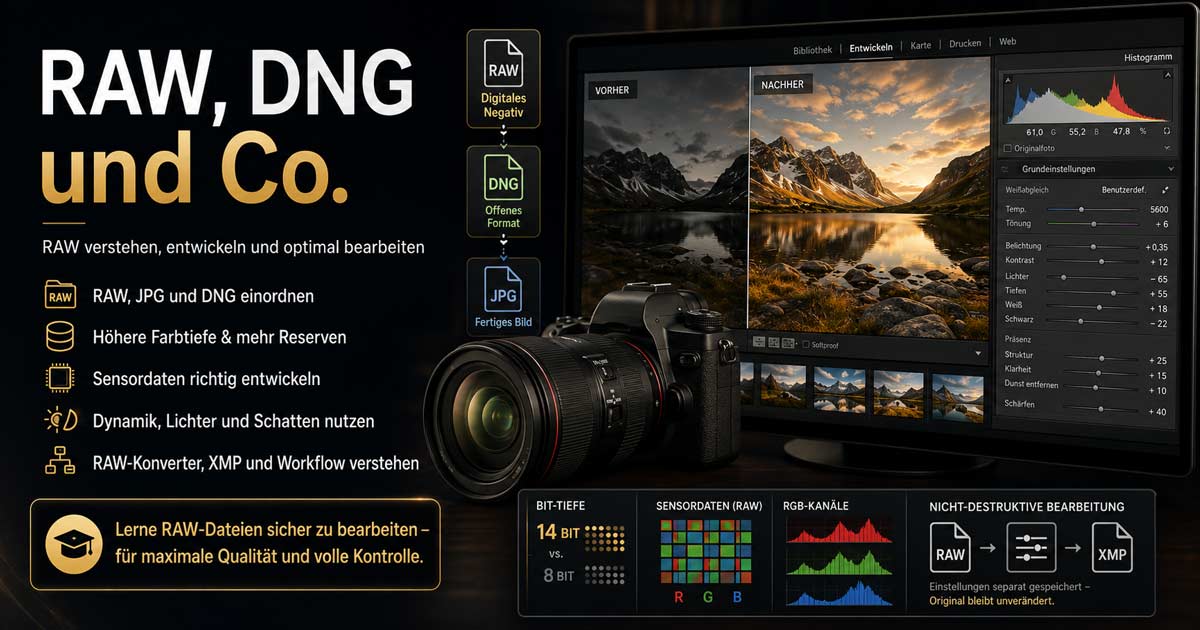
RAW, DNG and Co.
Analog as Digital! Developing images is necessary to ensure the best possible quality. In the past, the exposed film was the basis for the lab; today, it's the stored sensor data. This data is also called RAW data. RAW (raw) here stands for the raw data, i.e., the pure data of the photons captured on the sensor, as well as much additional information such as Exif, IPTC, GPS, preview image, etc...
Dates for this Course
Currently, the course is only offered as a Franzis webinar and serves as additional information for the RAW converter courses.
Analog or Digital?
In analog photography, a light-sensitive film is inserted, which stores the image as a negative. The negative is developed in a lab using chemical processes. Here, dodging, burning, masks, etc., can be used to process the image to create a perfect picture.
Technically, the following has changed in this process: Instead of film, in digital photography, information is stored on a sensor and then developed with a RAW converter. This sensor data is also called raw data or simply the RAW format.
Why RAW and not JPG?
The sun or other light sources emit photons. These hit our subject and are reflected depending on the surface and color. If we capture a subject with our camera, the photons pass through the lens onto the sensor until the curtain (shutter) falls. During this period of "exposure," the photons are captured in a grid on our sensor, separated by red, green, and blue. This grid can then be deciphered and processed by a RAW converter.
Light is a rather complex matter, and a good treatise on it can be found here:
http://de.wikipedia.org/wiki/Licht
The RAW format is usually a 12, 14, or even 16-bit format. With 12 bits, 4096 brightness levels per color channel are already available. A detailed list can be found here: http://de.wikipedia.org/wiki/Farbtiefe_(Computergrafik)
If you were to set the camera to JPG (for storage quality), the camera itself converts the sensor data into a "real image," but then only 8 bits are available to us. This doesn't sound so dramatic at first, but in fact, with 8 bits, only 256 brightness levels per color channel are available.
As long as we don't need to edit the images, this is generally not a problem. However, if you wanted to make the image one stop brighter, you would lose brightness levels.
Here's a small comparison between RAW and JPG data:
| Apertures | RAW (12 Bit) | JPG (8 Bit) |
| -4 | 4096 | 256 |
| -3 | 4096 | 256 |
| -2 | 4096 | 256 |
| -1 | 4096 | 256 |
| 0 | 4096 | 256 |
| +1 | 2048 | 128 |
| +2 | 1024 | 64 |
| +3 | 512 | 32 |
| +4 | 256 | 16 |
If it were that simple, one could conclude that with RAW data, you could always correct by 4 stops and achieve the result of the best JPG. Unfortunately, this is not true, because in the bright areas, many more photons were captured, which is better for calculation. Conversely, fewer photons were counted in dark areas, making it clear that editability also depends on the image subject.
TIP: The RAW format is always preferable to JPG due to its higher color depth.
ETTR - Exposure to the right
In the table above, you can clearly see that when brightening in the RAW converter, tonal values are lost. However, you can always make an image darker without loss, as long as a tonal value is not at its limit.
This results in a special feature that leads to better images when applied correctly. If you have very dark subjects, it makes sense to intentionally photograph them brighter, as this gives you more usable dynamic range and more contrast in the image.
The In-Camera RAW Converter
For a camera to display an image, it always needs its own RAW converter onboard. However, these function very differently. In some cameras, lens errors and the like are obviously not corrected, while in others, they are corrected very well. I therefore recommend to every beginner to set their camera quality to RAW+JPG and then process both shots identically. Here, the advantages of RAW quickly become visible. Professionals will, in any case, only shoot in RAW format. Meanwhile, there are also cameras like the Canon 5D III, which has a very good RAW converter onboard. Lens corrections, chromatic errors, etc., are thus also corrected for JPGs. Especially with combined HDRs, good results can be achieved and post-processing time saved.
For cameras without interchangeable lenses, the result is usually better, as the manufacturer can precisely adapt the converter for the camera and lens. Especially for those switching from compact to DSLR cameras, the results are often disappointing.
A Small Insight into Sensor Technology
Sensors are not the same across all manufacturers. Typically, 60% of the sensor is green, 20% red, and 20% blue; the arrangement is symmetrical but is also arranged differently by some manufacturers due to potential moiré effects.
To get a small insight, I'm linking to Wikipedia:
http://de.wikipedia.org/wiki/CCD-Sensor
A small insight into color arrangement:
http://commons.wikimedia.org/wiki/File:CFA_Pattern_fuer_quadratische_und_rechteckige_Pixel.png
If you want to delve deeper, you can search for "Sensoraufbau Fotografie" (sensor structure photography) in a search engine.
The examples here focus on single-layer sensors, but a multi-layer sensor like Sigma's would also be possible. Here, the individual colors are not distributed across a single sensor surface but in multiple layers, i.e., one for blue, one for green, and one for red.
Example from Wikipedia:
http://de.wikipedia.org/wiki/Foveon_X3
or here's the link to Sigma:
http://www.sigma-foto.de/fotowelt/fototipps/fotowissen/technik/artikel/article/foveon-x3-direkt-bildsensor.html
I would also like to post another very good link on the topic of sensors here:Â http://www.puchner.org/Fotografie/technik/die_kamera/sensor.htm
The Dynamic Range of the Sensor
The higher the dynamic range of our camera, the better we can edit later.
Modern DSLRs today achieve up to 15 stops of dynamic range. Architecture and landscape photographers, in particular, should consider this aspect when choosing a camera.
Examples of dynamic range:
Canon 5D II: 12 stops
Canon 5D III: 13 stops
Nikon D800: 15 stops
Since more photons hit bright image elements than dark ones, our photos also don't look exactly as we see them on location. The classic example here is photographing against a church window. Here, we usually have to choose between a great window or the church nave with blown-out windows. To compensate for this imbalance, a camera with high dynamic range is clearly advantageous.
How can I improve the dynamic range?
1. Filters
If you come from analog photography, you might have used filters to darken, for example, a sky. These filters are usually mounted on an attachment to the lens ring and then used as slide filters. Very popular here, for example, were filters from Cokin or Singh-Ray.
Here are the links:
http://www.cokin.co.uk/
http://singh-ray.com/grndgrads.html
By darkening the too-bright sky, a smaller dynamic range is required.
2. Two or more exposures
Instead of one image, we could take several with different exposure times, so you can later create a graduation mask in a graphics program using a second or even third layer. This achieves a similar effect as using a filter.
3. Dual ISO
Suppose you could create dark areas with a higher ISO value than bright ones, then a similar effect would also be achieved. Few cameras have such possibilities; Magic Lantern is very popular here.
4. Buy a camera with higher dynamic range
This sounds a bit mean, but in fact, from 13 stops of dynamic range upwards, I hardly need HDR anymore.
5. HDR 32 Bit
Create 3 or more shots in the camera's AEB mode and then process them as a 32-bit image in the RAW converter. This requires an intermediate step, which Photoshop or a Lightroom plugin from Photomatix, "Merge to 32 Bit HDR," automatically handles.
6. Outside of "real" dynamic range improvement, you can, of course, also resort to HDR programs. These also internally create a higher dynamic range, but selective editing of the images according to your own wishes is usually severely limited. Nevertheless, it's a lot of fun to play with these tools. Franzis also offers a comprehensive range of software products with HDR Projects.
Light and Shadow
While the RAW format can brighten and darken highlights and shadows, the correct shooting position offers better basic conditions. In extreme sun and harsh shadows, a Sun Swatter is best suited to remove harsh shadows from the face. If it's not the sun but merely the backlight causing problems, there are reflectors, but these often glare and thus miss the desired effect. A fill flash might be a good solution, but then power is usually required, and you're looking at a Hensel Porty system or Profoto's AirTTL.
So, when we talk about perfect pictures, photographic expertise is also required, in addition to the entire RAW process.
What is stored in the RAW format?
1. Sensor data (the individual data separated by red, green, and blue)
2. Preview image (downscaled JPG from the in-camera RAW converter)
This preview image is smaller than the RAW file and also compressed. This allows it to be viewed and quickly navigated on the camera's display. We will also find this image later in the RAW converter and can select it based on the preview image quality. However, extracting the image from the RAW file is not intended. Nevertheless, there are programs like Instant JPG from RAW that perform this task.
3. Exif information
Immutable data that provides us with information about the lens, camera, settings, etc. For a photographer, they are essential, as they help us quickly understand why images have become blurry, noisy, etc. ISO, aperture, shutter speed, metering method, focus, etc., can be found here.
4. IPTC (Core and Extension)
Modifiable data that is standardized. Information about the image, from the creator and rights to models and contracts, can be stored here:Â http://de.wikipedia.org/wiki/IPTC-NAA-Standard
5. GPS
Modifiable data about the location of the shot. The data can also be stored automatically if the camera has a corresponding GPS module.
Which graphics program can I use to edit RAW images?
None at all, because RAW images are not photos in the first place. To process RAW data, we need a RAW converter, but even here, the RAW data in the RAW file is not changed. We merely issue instructions that are stored separately. The RAW file is thus converted via the associated configuration file (.xmp or database).
Can I process other data in a RAW converter?
Yes, most RAW converters also process JPG or TIFF data. In the case of Bridge, which also acts as an interface to other programs offered by Adobe, it even handles videos, PDFs, etc...
The Adobe Camera RAW converter can now even be called as a filter in Photoshop CC, so individual layers can be edited with it. In older versions of Photoshop, this could be installed via an additional plugin from Dr. Brown (Edit layers in ACR).
Which RAW converters are available?
Adobe Bridge CC:
A great program that directly uses the Adobe Camera RAW converter, so you don't have to get used to a different user interface in Photoshop. The converter has a few more functions than Lightroom, such as spot detection, line correction with the Shift key for selective editing, automated detection of best settings for shadows, highlights, etc. Bridge is also the perfect interface to all other Adobe products. The rename functions are also very good, which is why I also like to use this converter in combination with Capture One.
Adobe Lightroom CC:
The totally bloated tool for photographers. The result is identical to Bridge CC, as both programs work with the same process version. Lightroom stores all preview images, settings, etc., in a database, the catalog. This allows huge image archives to be created and then searched using keywords. Most plugin manufacturers consider Lightroom to be the standard, so all common plugins can be used directly within it. Lightroom can also handle export, light table, map, photo book, contact sheet, printing, etc. Nevertheless, I personally prefer Bridge CC because I don't need a catalog, and thus work at the file level is possible.
Capture One Pro 12:
Currently probably the sharpest RAW converter with a very sophisticated operating concept. Qualitatively, it is clearly superior to Adobe software. The sliders sometimes work more powerfully than in Adobe. The pseudo-HDR function is truly ingenious, as are targeted possibilities for color manipulations and B&W.Â
Capture NX:
As far as I know, it has been discontinued. It's a good converter for Nikon, but since it cannot be used for other manufacturers and is also paid, Nikon users usually switch to Lightroom or Capture One.
Canon Digital Photo Pro:
Included, free RAW converter from Canon. Unfortunately unusable, as no selective image corrections are possible, and lens profiles have to be laboriously reinstalled.
DXO:
I have not yet tested DXO's RAW converter. The low noise has been mentioned positively several times. However, the speed was reported as slow. DXO acquired NIK Software from Google in 2018, so it might be familiar to some photographers. Since then, NIK has become paid again, and apart from some bugs in Photoshop that led to crashes, nothing new has been added to the software. The attempt to meaningfully integrate other DXO programs has so far failed. So, in the first year after the takeover, there was nothing but expenses.
LightZone, Gimp and Co.:
An open-source project for enthusiasts... it certainly cannot be compared with commercial providers, but it is interesting for some Linux users. Similarly, Gimp offers the possibility to edit "individual" images in RAW format, which is usually not sufficient. The same applies to Affinity Photo, which is brilliant but unfortunately cannot replace a RAW converter.
We gather the first experiences
I always use Bridge for this, as the edits are stored in an .xmp file directly next to the RAW photo. This file is hidden in Bridge but can be displayed via the menu "View" -> "Show Hidden Files". If it is not displayed directly next to it, then sort the images by file name.
We'll just change the Exposure settings by +1.4 stops. Then we can open the xmp file with a text editor and see the changes directly. All changes are stored in XML format. Bridge is good for me because everything can really be found in this separate file.
This principle applies to all RAW converters! Either the edits are stored in a file or, alternatively, in a database.
Attention: If you want to back up your RAW edits later, you will definitely need the editing settings, i.e., the XMP file or a backup of the database (e.g., Lightroom catalog) or Capture One session or catalog!
In Lightroom, I would definitely also activate the .xmp files (Lightroom -> Catalog Settings -> Metadata -> Automatically save changes to XMP), so you can not only work across Lightroom and Bridge but also automatically have the edits during data backup. Better safe than sorry.
RAW or DNG?
Every manufacturer has its own RAW format.
Canon: .CR2
Nikon: .NEF
Samsung: .SRW
Sony: .ARW, .SR2 .SRF
etc...
These store data that is in general use, but also camera-specific data such as the focus point for Nikon.
As an alternative, Adobe has provided a quasi-neutral standard since 2004, the DNG alias "Digital Negative Format".
Here's a small link: http://de.wikipedia.org/wiki/Digital_Negative
The advantage is that the file size is slightly smaller, and only one file type is necessary for image agencies. Furthermore, DNG is a container format that can also hold the original RAW. No additional .xmp file is required either, as it is also stored together with the DNG.
The disadvantage is that additional manufacturer information that DNG cannot handle is discarded.
TIP: The image quality is completely identical for RAW and DNG. Like many, I tend to prefer the manufacturer's RAW files.
Basic Settings
There are settings I need for every image. These include:
- Lens correction
- Chromatic aberration correction
- Basic sharpening
TIP: It is advisable to create these basic settings and save them as a template. This template can then be applied during import or assigned or copied/synchronized later.
The Most Important RAW Settings in Detail
Here we go, let's get to know the individual parameters...
Lens Corrections
Lenses are usually not perfect; especially zoom and wide-angle lenses often exhibit barrel distortion, which makes straight lines appear barrel-shaped. Additionally, lenses vignette towards the edges, which can be up to 2 stops for wide-angle lenses.
Good RAW converters can remove these optical distortions at the touch of a button. The RAW converter should recognize the lens and camera combination used based on the Exif information and optimize it independently. Many different manufacturers are supported in Lightroom, Bridge, and Capture One for this purpose.
If a lens is not recognized, an image can also be manually corrected in the RAW converter. However, since I want to correct every image in any case, this correction is part of my basic settings.
Chromatic Aberrations
Light consists of different wavelengths. This division of light can be clearly seen with a prism. The same applies to a lens. If the effect is not immediately avoided by the lens, we get a deviation of the individual colors on the sensor. The wider the angle of a lens, the more visible these errors are in the image. This is characterized by color shifts occurring towards the edge of the image. For example, a branch is additionally depicted in red and green, resulting in a distorted, unsharp image overall.
The following article is interesting in this regard:
http://de.wikipedia.org/wiki/Chromatische_Aberration
Via a checkbox in the RAW converter, the software ensures a precise overlay of the red, green, and blue layers. For this purpose, the RGB grid in the area sensor is divided into 3 individual grids or, in the case of a three-layer sensor, into 3 individual grids, and then digitally bent so that the pixels lie on top of each other again.
TIP: If further chromatic errors are visible after this action, these are so-called longitudinal chromatic errors or purple fringing (http://en.wikipedia.org/wiki/Purple_fringing). These can occur particularly in architectural shots when, for example, lamps represent their own light source. Further color errors can often be seen at their high-contrast edges. These can only be completely removed from the image (Bridge: Remove Fringe, Lightroom: Eyedropper).
Sharpening (Presharpener)
Basically, images in Lightroom and Bridge are soft; they first need to be sharpened. Various sliders are available for this, which provide the same effect as the old Unsharp Mask filter in Photoshop. This is sufficient to satisfy 95% of all photographers.
To see what the individual sliders Amount, Radius, Detail, and Masking do, press the Alt key simultaneously while moving the slider. Good basic settings are around 80% (all sliders).
In fact, it could certainly be much better, as other RAW converters like Capture One impressively demonstrate. I personally have simply gotten used to working in Bridge and therefore reluctantly use other converters. However, if I want to print images very large or even submit them to competitions, I increasingly switch to Capture One.