


DIRSCHL Maintenance
Switches your WordPress website into maintenance mode for visitors – while you, as an administrator, can edit the page normally.
Display a full-screen maintenance page with a background image or color, optional logo, and free HTML – or redirect visitors to an external URL. For temporary maintenance, HTTP 503 is recommended (SEO-friendly).
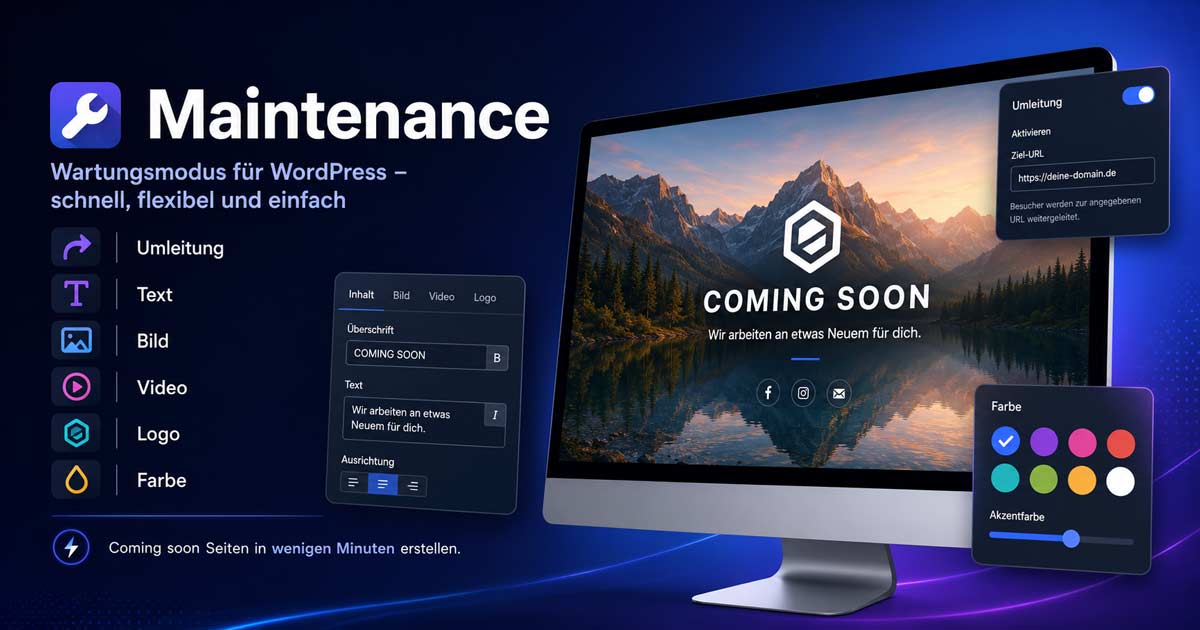
Installation (Step-by-step)
- Download ZIP 1.0.0 (right column)
- WordPress: Plugins → Add New → Upload Plugin
- Activate plugin DIRSCHL Maintenance
- Settings → DIRSCHL Maintenance – Set mode and text
- Activate and save maintenance mode
- Check in an incognito window; as an admin, the normal page should remain visible
Automatic Updates
New versions appear under Dashboard → Updates when the release is hosted on dirschl.com.
Download & Installation
Version 1.0.0
Download dirschl-maintenance-1.0.0.zip
Predecessor (Simple Maintenance Mode Plus, if needed):
Features
- Full-screen maintenance page with centered text block
- Background: Full-screen image, solid color, or transparent
- Optional logo above the HTML text
- HTML editor for heading and any content
- Redirection mode to external URL
- HTTP 503 with
Retry-Afteror HTTP 200 - Admin bypass – logged-in administrators see the normal website
- Login, wp-admin, REST, Cron, robots.txt, and favicon remain accessible
- Migration of settings from Simple Maintenance Mode Plus
Typical Uses
- Relaunch or major theme update
- "A new website is being created here" with custom text
- Short redirection to an info page
- Admins continue working – visitors only see the maintenance mode
Latest Changes
- 1.0.0 – DIRSCHL Rebrand, Update Server, Options Migration
- 1.0.1 – Simple Maintenance Mode Plus (Predecessor)
See readme.txt in the plugin for details.
Configuration
- Activate Maintenance Mode – Main switch
- Mode – Maintenance page or Redirection
- Background – Image, color, or transparent
- HTML Text – e.g.,
<h1>a new website is being created here</h1> - HTTP Status – 503 recommended for temporary maintenance
- Admin Bypass – leave enabled as long as you are working on the project