
Outpainting and Inpainting
are almost magical capabilities and essential for many photos and AI-generated images. They allow you to change image formats, expand content, or add content.
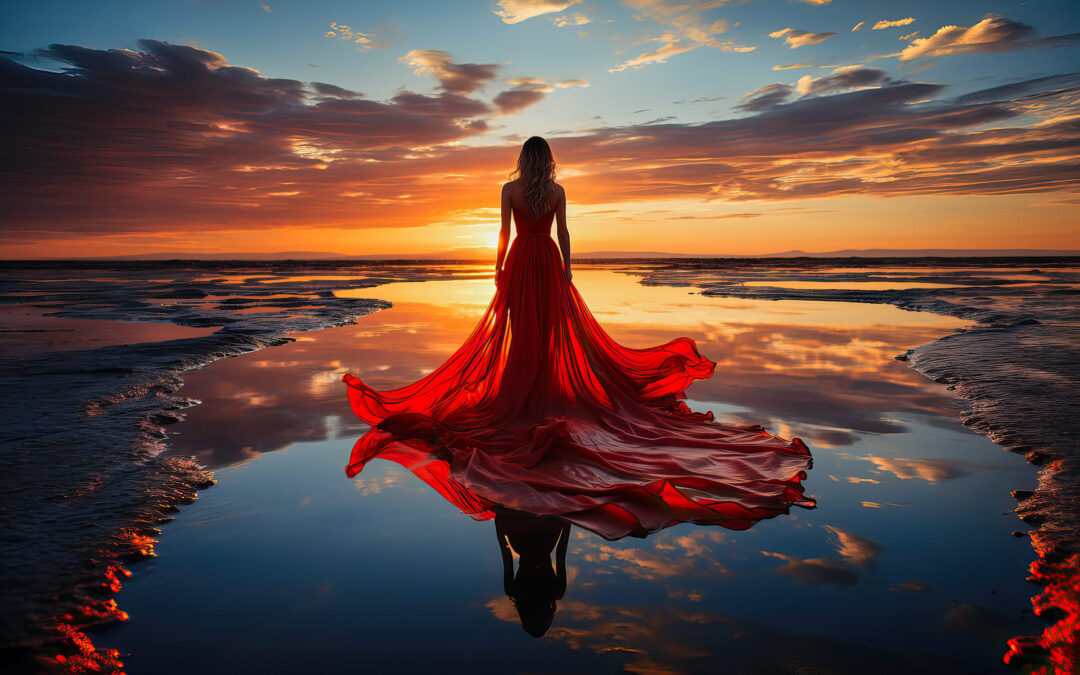
For example, in the cover image, the reflection was not complete. In the past, that was frustrating; today, you simply use Zoom Out and get great results.
Zoom Out can be used repeatedly. Unfortunately, the resolution does not currently change.
Zoom Out in Midjourney
In Midjourney, you can expand rendered images by 1.5x or 2x, generating new images whose center corresponds to the original image. Square adds content to create a square format, and you can also shift the image left, right, up, and down.
By default, Midjourney or generally AI-generated images are often quite striking, but image content is frequently cut off. This is precisely where Zoom Out offers a solution. An alternative would be to expand the entire image in Photoshop, which is also the better approach for some images due to the resolution advantage. However, if you want to maintain the image's original message, Zoom Out offers a more consistent quality.
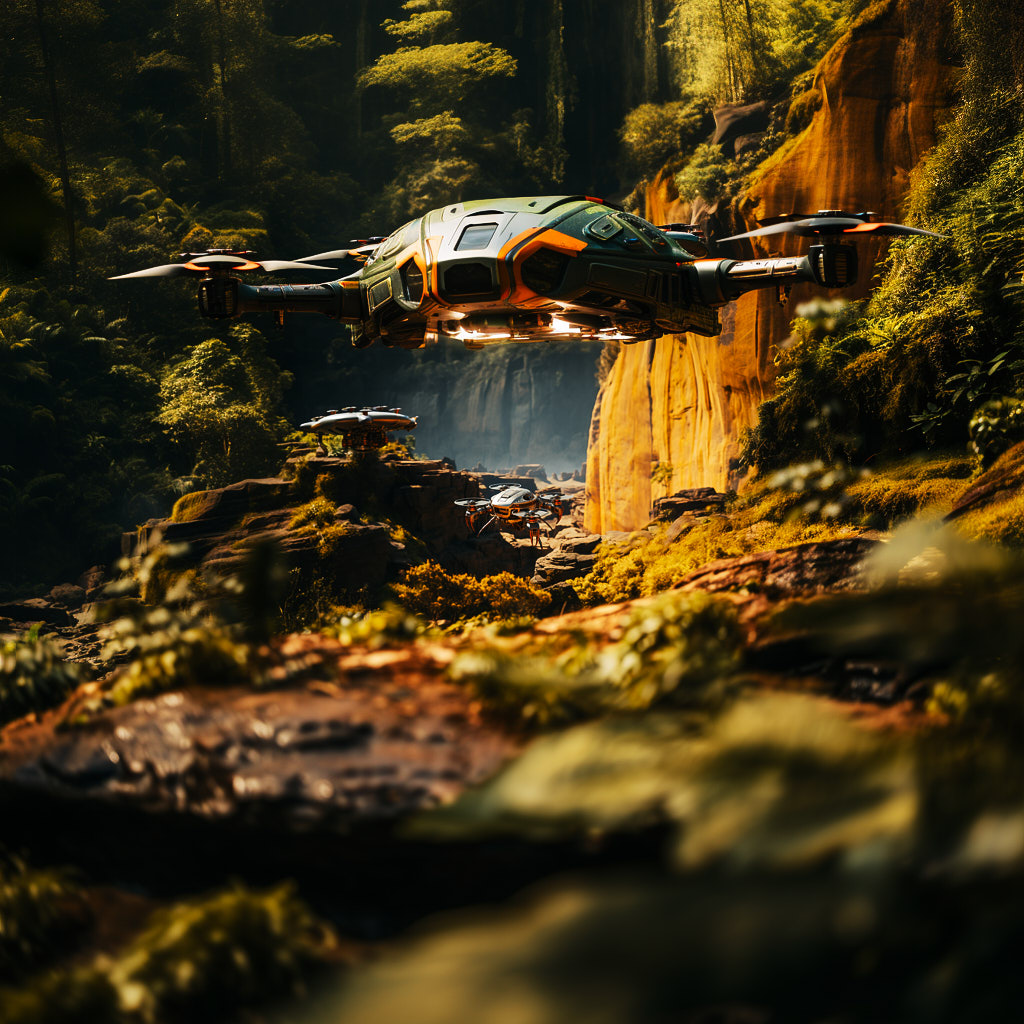
The following image shows Zoom Out applied multiple times.
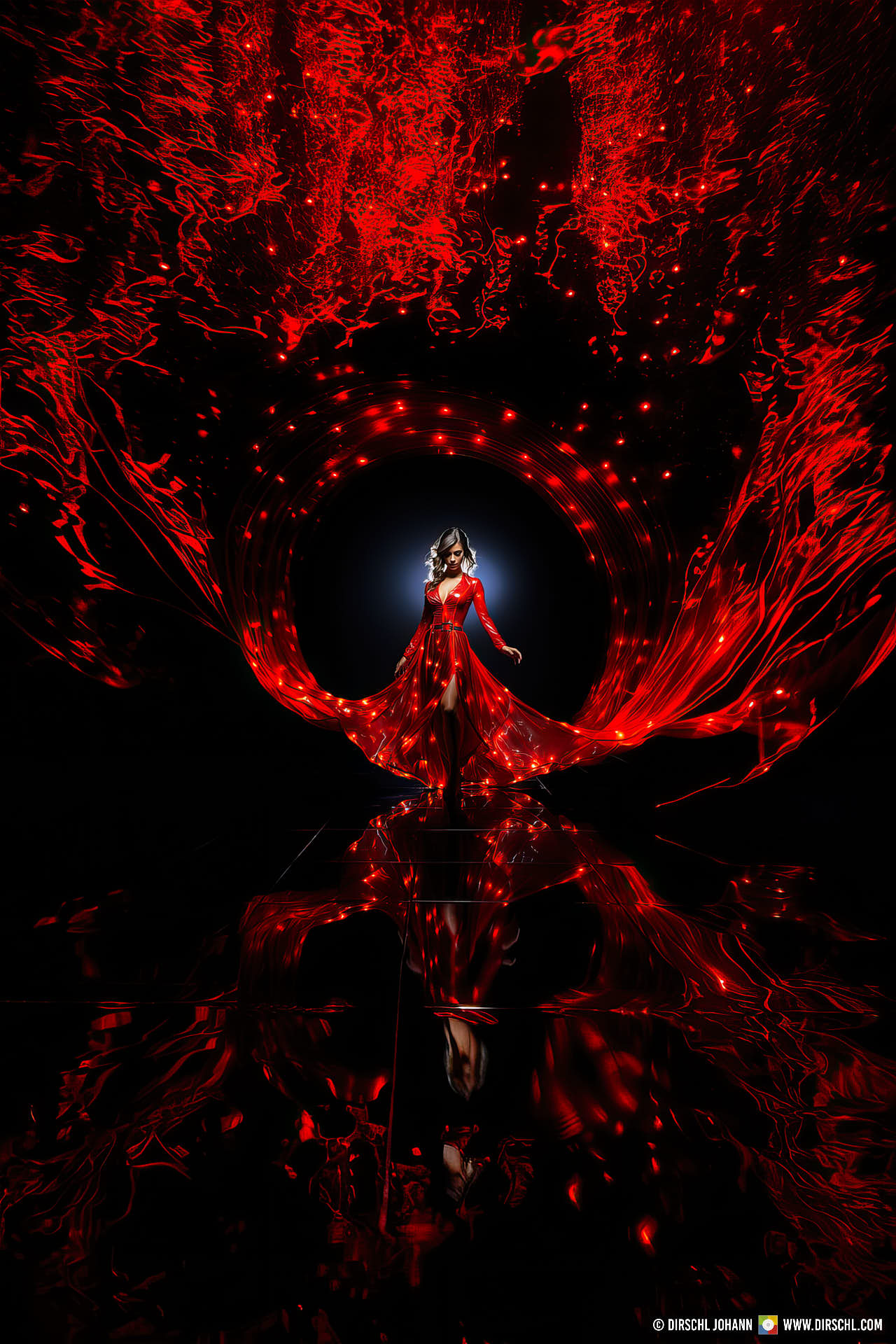
Example: Multiple Zoom Out and Square
The drone example was intentionally not upscaled or edited; it comes directly from Midjourney. The square variant, at 1024 px x 1024 px, is a bit too small to appear sharp on regular websites. I therefore strongly recommend using an upscaler like Topaz Gigapixel AI. However, it can be used for Instagram or in smaller formats. I usually find the unedited colors unsatisfactory. In Capture One, I have extra presets that convert PNGs to JPG and adjust many parameters. Since version 5, the quality has significantly improved, but I have still created presets to maximize the potential of these images.
Zoom Out Examples 1.5x and 2x
For the first example, a 3:2 aspect ratio was chosen, and the reflection was cut off. After Zoom Out, the reflection is visible again. The second example was generated in a 16:9 format, as it represents a typical film scene, but can also be used somewhat cropped as a banner or 2:3 image. These capabilities often play a crucial role when purchasing images. Zoom Out therefore makes images more usable.
Image Content and Message
The motif itself tells the story of D-Day in just 2 images. The face represents the emotional variant of a single portrait, while the escape, retreat, or advance represents the group dynamic variant.
Images tell stories, making them superior to videos for certain applications. This is because a moving image does not represent a single moment. For websites and print, the exact moment and the emotion it conveys are always crucial.
Improve Quality with Outpainting and Inpainting
Those who, like me, create AI-generated stock images occasionally receive a rejection of the submitted motif. The image "Burnout" was not planned as such. It was supposed to show a person who no longer wanted to do the same thing every day. It should have served as an advertisement for job agencies. The fire was also not in the prompt. This happens frequently, but for me, the new image conveyed a better, albeit different, message. On Adobe Stock, it was rejected in the form shown here due to quality reasons.
While this is highly frustrating with photos, it's unproblematic with AI images. The images always include the Job ID, which can be queried using the /show command. This displays your originally used prompt and generates the next, very similar image. It is therefore important not to delete these IDs. Alternatively, you can search for them in the Midjourney archive, but this is more time-consuming.
Precise Control is Essential!
Here you see a rejected stock image. In 100% view, you can see that objects on the desk are not entirely consistent, and part of the flames are unclean. This could have been noticed, but my initial impression also focused on the motif.
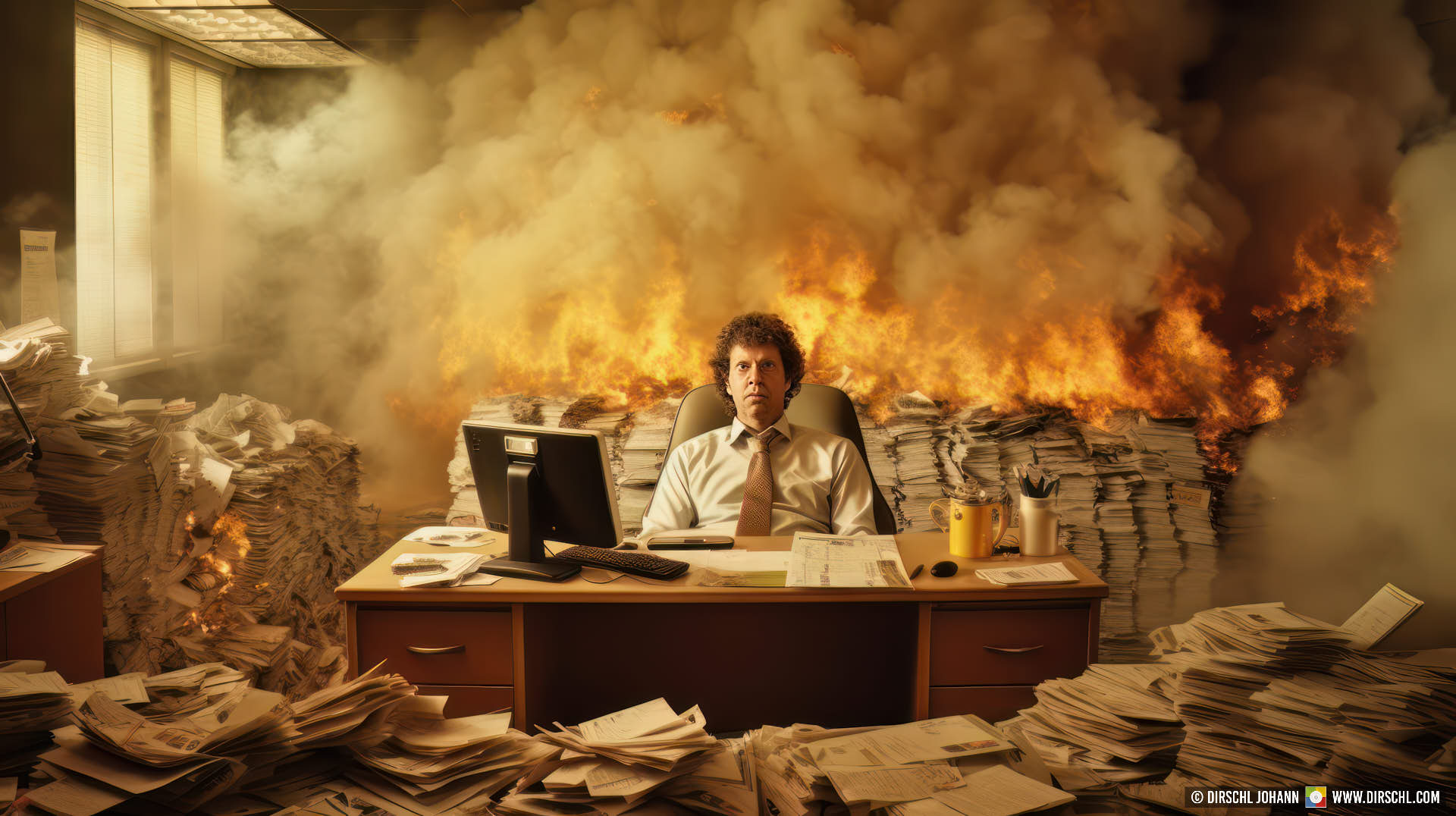
Recreate a Similar Image
Since I liked the worker and the overall mood, I included the image link in the prompt and wrote the same prompt again after it. The result is a very similar image with the same message. I recreated it because Adobe does not re-examine images once they have been rejected.
Zoom Out and Inpainting
The new version also shows small errors in the fire, so I used Zoom Out to minimize them and expand the image. In the second variant, however, I replaced the faulty flames in Photoshop using Generative Fill.
Complex Outpainting and Inpainting
In the example of the "glass customer," you can clearly see how Zoom Out changes an image. Starting with a single person and moving towards a surreal glass cube representation. The third image is another version (Midjourney always creates 4 versions) and shows the original colors and output (which I adjust for each image using my own presets in the RAW converter). The fourth shows the final version in which all faces, hands, shoes, and the right edge were completely generatively replaced.
Images that are pleasing in their composition can therefore still be used even if they contain obvious errors. This also adds more detail to the image, making it suitable for larger prints.