


Websites & Plugins
WordPress Basics: Installation, Backend, Divi & Plugins
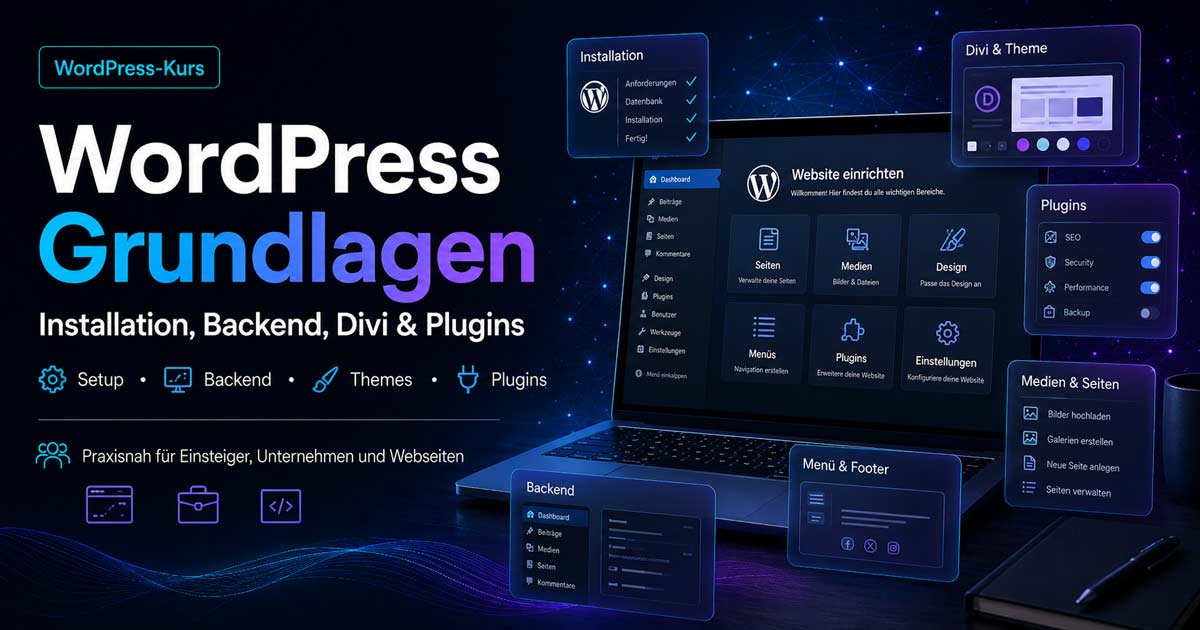
This course provides a clean introduction to WordPress: Backend login, users, theme and child theme, Divi, media, pages, homepage, menu, footer, essential plugins, SEO, data privacy, and a structured workflow for maintainable websites.
Your WordPress Professional
Johann Dirschl
Two WordPress Courses – A Common Thread
Installation, Backend, Divi, Child Theme, Media, Pages, Menu, Footer, Plugins, SEO, and Data Privacy.
Coming Soon: WordPress Plugin Development
Custom functions, shortcodes, APIs, and admin tools – PHP, Hooks, REST, security, and clean structure.
Who is this course for?
Beginners, freelancers, associations, small businesses, creatives, and anyone who wants to understand and maintain their WordPress website themselves. No programming is required.
Those who wish to develop their own plugins later will find the foundation here. Plugin development follows in the second course.
What will you learn in this course?
- WordPress Backend login and user management
- Install Divi, activate Child Theme, remove unnecessary themes
- Basic settings, media, first pages, and homepage
- Divi Builder, menu, footer, logo, and website identity
- Useful plugins, SEO, and data privacy fundamentals
- Clean workflow for future extensions
WordPress Backend Login
After installation, you can access the Backend via domain.de/wp-admin. Log in with your username and password – this is where pages, media, plugins, menus, and settings are created.
The Backend is the control center of the website, not a technical foreign body.
Create Users and Understand Roles
Multiple individuals should use their own accounts – not a shared administrator login.
Users → Add New – and choose the appropriate role. Administrator rights should only be granted for technical responsibility. This protects against errors and increases security.
Install Theme
The theme determines design and many functions. In this course, we will work with Divi.
Appearance → Themes → Add New → Upload Theme – upload Divi.zip, install, and activate. Divi comes with a visual builder for both the Backend and Frontend.
Install Child Theme
Customizations do not belong in the main theme. A Child Theme is based on Divi and is preserved during updates.
A Divi Child Theme can be created, for example, via providers like Divi Cake. Rule:
- Install Divi
- Activate Child Theme
- Only make custom adjustments in the Child Theme
Delete Unnecessary Themes
Standard themes are usually not needed: Appearance → Themes → Theme Details → Delete (red link bottom right). The active theme cannot be deleted.
A tidy installation is easier to maintain.
Enter Divi API Key for Updates
For reliable Divi updates, you need an Elegant Themes account. The API key is stored in the Divi settings. Without valid data, updates and security patches will be missing – a particular risk for client projects.
Basic Settings After Installation
Among other things, check:
- Site Title, Tagline, Site Icon
- Permalinks, Language, Timezone
- Reading settings and user roles
Settings → Media → Uploading Files: Monthly and yearly folders are useful for blogs, but often cluttered for many corporate websites – it's best to make this decision before the first bulk upload.
Browser and Developer Tools
Google Chrome (or a modern browser) with developer tools helps with spacing, colors, menus, image sizes, and responsive display.
View → Developer → Developer Tools – check HTML, CSS, network, and errors.
Create Your First Page
Move example pages like “Sample Page” to Pages → All Pages → Trash. New page: Pages → Add New – e.g., “Home” or “Homepage”. Then design it with the Divi Builder in the Backend or Frontend.
Set Homepage
Settings → Reading → Your homepage displays → A static page – then select the desired page under Homepage. Without this setting, WordPress often displays the blog.
Upload First Media
Media → Add New – images should not be unnecessarily large. Web resolution is sufficient for many areas; for sliders or photo pages, 1920 px width can be useful.
Meaningful filenames, alt texts, titles, and descriptions help with accessibility and SEO.
Create a Slider or Hero Section
A large starting area with an image or slider is suitable as a first exercise. A good hero needs:
- clear heading and subheading
- good contrast and a meaningful button
- appropriate image effect and mobile display
Build it in the Divi Builder with sections, rows, and modules.
Customize Logo and Website Identity
Typical paths:
- Divi → Theme Options → General → Logo
- Divi → Theme Customizer → General Settings → Site Identity
Site title, tagline, and square website icon (favicon) for the browser tab.
Customize Footer
The footer often contains imprint, data privacy, contact, and social links. Paths:
- Appearance → Widgets
- Divi → Theme Customizer → Footer
Replace the default Elegant Themes line with your own information – company name, year, imprint, and data privacy.
Check Column Spacing and Layout
E.g., Divi → Theme Customizer → Layout Settings – uniform page width, spacing, font sizes, colors, and mobile display. Don't adjust all sliders, but choose a clear basic structure.
Create Menu
Appearance → Menus – create a new menu, add pages, then assign it under Manage Locations → Primary Menu. Only then will it appear in the theme.
For Divi projects, the classic menu area remains central – depending on the version, there may be additional ways.
Useful Plugins for Getting Started
Choose plugins consciously – too many slow down and complicate the website.
Replace Image
Enable Media Replace – replace already embedded images or files without re-embedding them everywhere.
Duplicate Content
Yoast Duplicate Post – copy pages and posts. Especially helpful with Divi as a template for further pages.
SEO
An SEO plugin (formerly often Yoast, today also Rank Math) maintains title, meta description, focus keyword, URLs, headings, and social preview for each page. It does not replace good structure – it supports maintenance.
Data Privacy and Cookies
Consent plugins depend on integrated services (statistics, YouTube, Maps, fonts, tracking). A banner alone does not make it legally compliant – imprint, data privacy, and loading behavior before consent are crucial.
Security and Backups
Backups before updates are mandatory. Plugin conflicts and operating errors can otherwise quickly become a problem.
Clean Workflow
- Few, useful plugins and regular updates
- Secure passwords and individual user accounts
- Clear page structure, optimized media, maintained SEO
- Functional menu, clean footer, backups before major changes
- Document important settings
Distinction from the Plugin Development Course
This course covers installation, Backend, setup, and maintenance – not custom plugin development.
The follow-up course covers PHP, WordPress Hooks, Shortcodes, Admin Pages, Database, REST API, Nonces, Permissions, JavaScript, CSS, and clean plugin structure. This foundational knowledge is the basis for that.
Course Goal
You will understand WordPress not just for clicking, but in its structure: login, users, Divi with Child Theme, media, pages, homepage, menu, footer, plugins, as well as SEO and data privacy fundamentals.
The result is a solid foundation – not a high-end website at the push of a button, but a clean installation and a clear process for further development.
Book WordPress Basics Course
Individual course on-site or online – or as a foundation before the later plugin development course.